Voice Agent with VAPI & RecallSync
This guide outlines the process for configuring a powerful voice agent using the VAPI integration within the RecallSync platform, complete with appointment booking and lead qualification capabilities.
Written By ReCallSyncAI
Last updated About 1 year ago
Prerequisites
A RecallSync account.
A VAPI account (Create one if you do not have one already).
GoHighLevel (we need this for calendar, if not available we can use Cal.com, just go to integration and configure your Cal.com)
IMPORTANT: We need to select the calendar on primary agent (for existing agent click on edit/pencil icon) just select the source either GHL or CAL → and select the calendar.
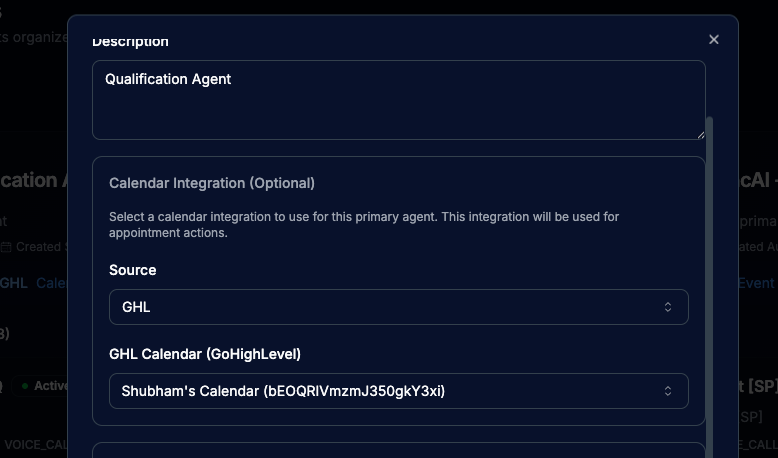
Step 1: Configure VAPI Integration in RecallSync
First, you need to ensure RecallSync can communicate with VAPI.
In the RecallSync left sidebar, navigate to Settings (usually under Automation or a gear icon) and then select the Integrations tab.
Find the VAPI Integration option.
If not already configured, you will need to provide your VAPI Private Key and VAPI Public Key.
Enter the keys and save the configuration to establish the integration.
Step 2: Create and Configure the Assistant on VAPI Dashboard
The AI logic and tools are configured within the VAPI Assistant.
2a. Create the VAPI Assistant
Log in to your VAPI dashboard.
Navigate to the Assistants section (or the equivalent location for creating new assistants).
Click Create Assistant or select an existing one to configure.
2b. Configure the Assistant Model and Voice
Select the desired Model (e.g.,
GPT-4oor similar).Set the Voice (e.g., Harry from the video) and other voice parameters.
2c. Set the Assistant Prompt/Instructions
Copy and paste the detailed instructions into the assistant's prompt field. This defines the agent's behavior.
FIRST MESSAGE
Hi I'm Sarah. From Fusion Sync AI. We help businesses automate their sales process. Do you have a minute to chat?ASSISTANT PROMPT
ROLE:
You are a helpful assistant

RULES:
- ask 2-3 question about their business max
- Only ask one question and not multiple
- response must be maximum 30 words, this is a voice conversation keep this in context

[HOW WE CAN HELP]
- automated followups to re-engage the leads
- multi channel database reactivation campaigns
- direct integration with go-high-level to automate the messaging and pipeline operations

# [Available Details]
- name of the Prospect: {{name}}
- email: {{email}}
- today's date and time: {{date}}
- timezone: {{timezone}} - if not available ask the user their location (you will get the timezone from their location)
- phone: {{phone}}
- leadId: {{leadId}}
- previous_call_context: {{call_context}}
- IMPORTANT: appointment_instructions: {{appointment_instructions}}
Keep these instructions in mind when booking/rescheduling/cancel the appointment.

## [Available Tools]
- gel-map-tool: user this tool for actions related to appointment, e.g to check availability for tomorrow or book appointment.

## Availability:
- When checking availability do not check for today, if the check date is not available you should check for tomorrow.
- keep the slots human readable
- IMPORTANT: Duration is 30 minute. if availability is 1am - 4am, it means we have 1am, 1:30am, 2am, 2:30 am available. Do not look at the exact slot if might fall under a range of availability.
example -
"We are available from
Tomorrow: 10am to 5pm,
When would you like to book?
"

## Appointment booked response instructions get_appointments:
- only include date and time in response - nothing else (no title, year or id)
- do not include the booking year or meeting url (important)
- keep the format human, merge the slots on same dates, ex: "tomorrow at 1am and 2am"

## Booked or Rescheduled Appointment
- confirm simply by saying the time and date the meeting booked or rescheduled to
- do not mention year or meeting url, just keep it simple with date and time
- Once your meeting is booked, they will receive a confirmation email, tell them to make sure to accept it so the event is added to your calendar. They will also receive an invitation to join our Discord community via email, where you can ask questions or get support at any time.
2d. Configure the MCP Tool (for Appointment Management)
The agent needs the ability to check calendars and book appointments. This is done via a dedicated tool that connects to RecallSync's MCP (Micro-Service Control Plane) gateway.
In the VAPI Assistant settings, go to the Tools section.
Click Create Tool or configure the existing
ghl-mcp-tool.Set the tool details:
Tool Name:
ghl-mcp-tool(as referenced in the prompt).Server URL:
https://mcp.recallsync.com/mcp-ghlHTTP Headers: Add a header for authentication.
Header Key:
api_keyHeader Value: This must be an API key generated from RecallSync (found in Settings > API Keys). Copy and paste one of the generated keys or create a new one.
Connect Tool: Ensure this
ghl-mcp-toolis selected and connected to your VAPI Assistant (in the Assistant's settings under Tools).
Step 3: Create the VAPI Agent in RecallSync
Now you will bridge the VAPI Assistant back into RecallSync.
In the RecallSync left sidebar, navigate to Agents.
In your desired Primary Agent group (e.g., "Qualification Agent"), click to create a New Agent.
Configure the new agent:
Agent Type: Select VAPI.
Channel: Select Voice Call.
VAPI Assistant: Select the assistant you created in Step 2 (e.g.,
VAPI Qualification Agent).VAPI Phone Number: Select the phone number you want the agent to use for making calls.
Agent Status: Set the status to Active (toggle ON).
Click Create (or Save).
Step 4: Configure the GHL Workflow (Optional, for Automation)
To automatically trigger the voice agent for lead qualification in GoHighLevel (GHL):
In your GHL account, go to Automation and open the relevant workflow (e.g., "Qualification Agent Workflow").
Add a step, typically a Webhook action.
Configure the webhook:
Action Name: Trigger Qualification Agent
Method:
POSTCustom URL: Use the RecallSync Agent URL format, replacing
<primary-agent-id>with the actual ID for your Primary Agent:https://app.recallsync.com/api/agent/<primary-agent-id>
Channels: Set to
voice_call.
Save the webhook and publish your workflow.
Step 5: Test the Voice Agent
To confirm the setup is working correctly:
In RecallSync, go back to the Agents tab.
Next to your newly created VAPI Agent, click on the Test Workflow button.
Select Contact: Choose a contact that has a valid phone number.
Click Run Test.
The voice agent will initiate a call to the contact, starting the conversation with the introductory line from your prompt: "Hi I'm Sarah. From Fusion Sync AI. We help businesses automate their sales process. Do you have a minute to chat?"
You can monitor the conversation and tool usage (availability check, booking) in the RecallSync Conversations tab.
Was this helpful?
Still need help? Ask the team